Revolut Pay for Ecwid Documentation
Complete documentation for Revolut Pay for Ecwid: setup guides, configuration options, FAQs, and troubleshooting.
What's new in version 4
Version 4 adds Apple Pay, Google Pay, and Pay by Bank to checkout, and a redesigned settings page.
Set up the app
To accept payments, install the app and connect it to your Revolut Business merchant account.
- On the Revolut Pay app page in the Ecwid App Market, click Get. After the app installs, Ecwid opens the app settings.
- In Revolut Business, go to Settings → APIs → Merchant API and copy your production secret key and public key. The Revolut Business link on the settings page opens this screen.
- Paste the keys into Production secret key and Production public key.
- Check that Sandbox mode is off. When the app is ready to take real payments, the top of the settings page shows Live payments.
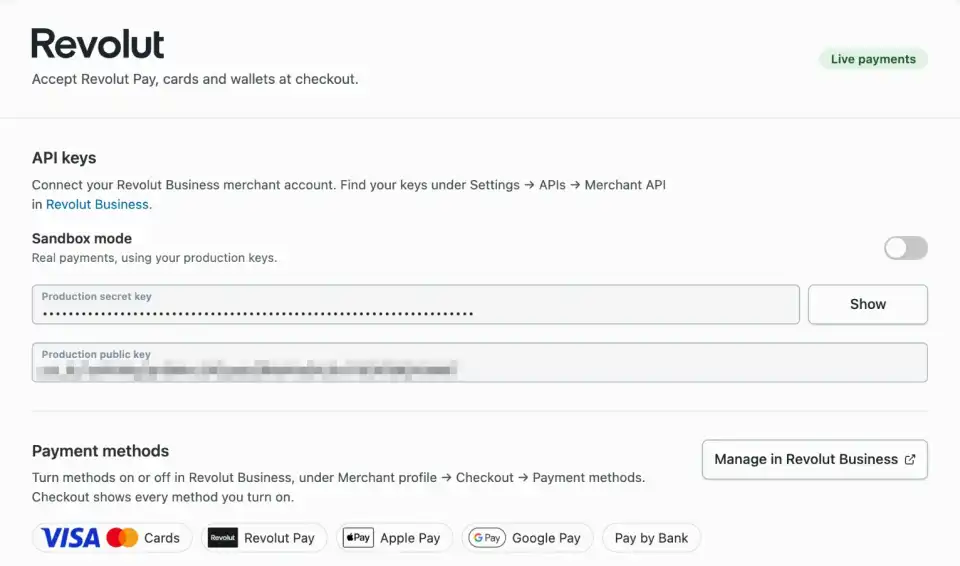
The settings page saves your changes automatically.
Secret keys start with sk_ and public keys start with pk_. If you paste a key into the wrong field, the settings page shows an error.
Important: Before you offer Revolut Pay to customers, check that you entered your production keys and turned off sandbox mode.
Choose payment methods
Checkout shows every payment method that you turn on in Revolut Business. The app supports these methods:
- Cards (Visa, Mastercard, Maestro and American Express if your account supports it)
- Revolut Pay
- Apple Pay
- Google Pay
- Pay by Bank
Customers see each method you turn on as an option at checkout:
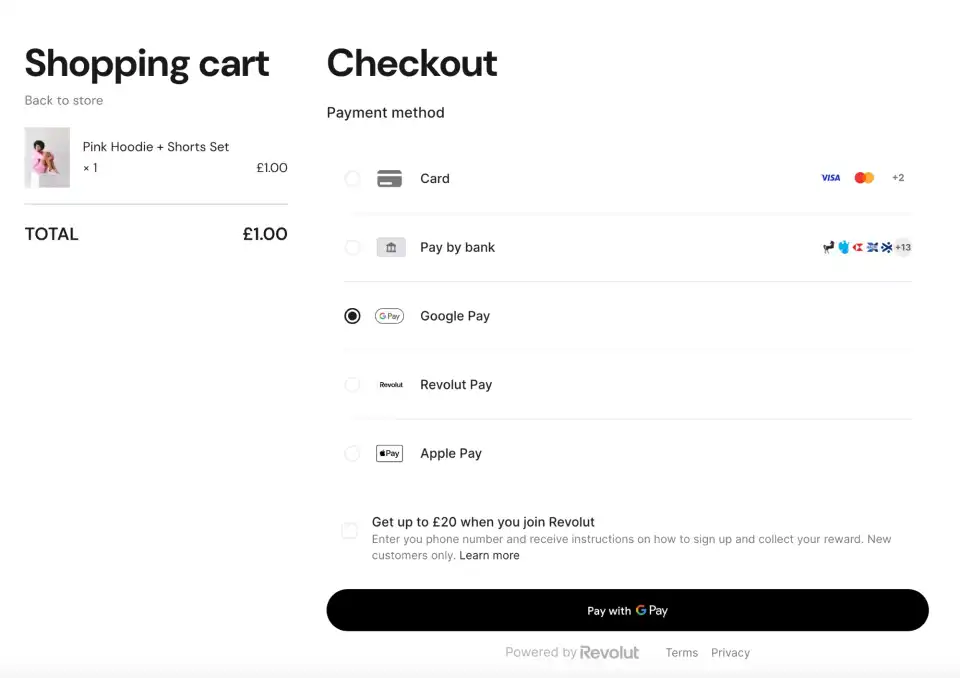
To turn a method on or off, click Manage in Revolut Business on the settings page. In Revolut Business, the methods are under Merchant profile → Checkout → Payment methods.
Google Pay needs no extra setup. Apple Pay needs a one-time domain setup, described in the next section.
Set up Apple Pay
Before customers can pay with Apple Pay, Apple must confirm that you own the domain your store runs on. You do this once. Until then, the Apple Pay section of the settings page shows Needs domain setup. After setup, it shows Enabled.
Apple Pay setup works in live mode only, because Revolut doesn't support Apple Pay in sandbox mode.
Under How is your store hosted?, choose the option that matches your store:
- My domain uses Cloudflare: for an Ecwid Instant Site on your own domain, when Cloudflare manages that domain. The app does the setup for you.
- I host my own website: for a store embedded on a website that you host. You upload a file to your web server.
If your domain uses Cloudflare
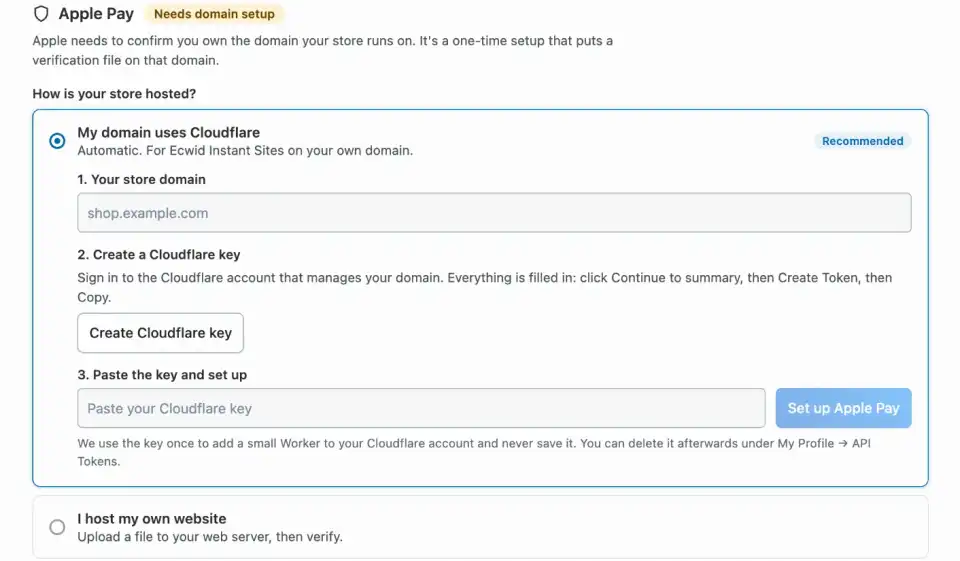
- Under Your store domain, enter the domain your customers shop on, for example
shop.example.com. - Click Create Cloudflare key, and sign in to the Cloudflare account that manages your domain. The key's name and permissions are already filled in.
- In Cloudflare, click Continue to summary, then Create Token, then Copy.
- Paste the key into the settings page and click Set up Apple Pay.
The app uses the key once to add a small Cloudflare Worker to your account. The Worker serves Apple's verification file on your domain and passes every other request to your store. The app doesn't save the key.
The key can read your zone and DNS settings, and edit Workers scripts and routes. After setup, you can delete the key in Cloudflare under My Profile → API Tokens. The Worker keeps working without it.
Cloudflare must proxy the DNS record for your domain. If it doesn't, the app tells you how to turn proxying on.
If you host your own website
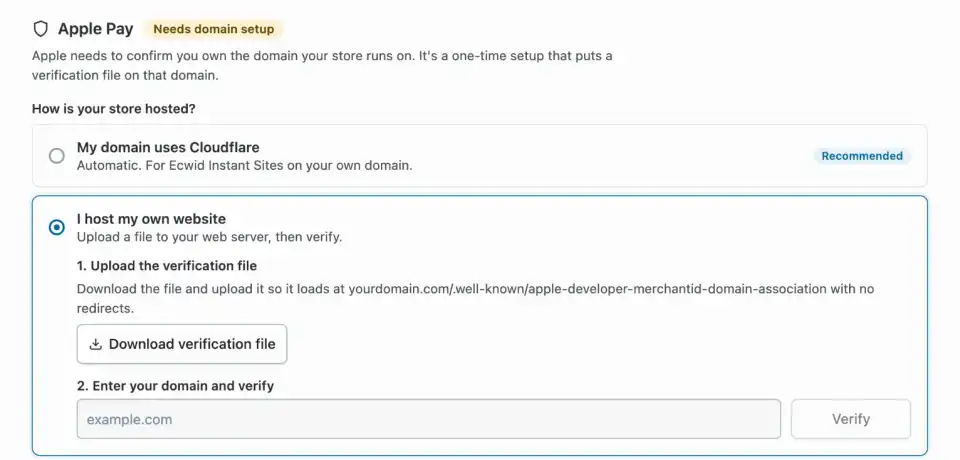
- Select I host my own website, and then click Download verification file.
- Upload the file to your web server so that it loads at
https://yourdomain.com/.well-known/apple-developer-merchantid-domain-association. The file must load over HTTPS, with no redirects and no file extension. - Enter your domain and click Verify.
- When the app finds the file, click Register with Apple Pay.
Keep the file on your server after registration, because Apple checks it again.
Domains and devices
- Each domain and subdomain is registered separately. The app supports one registered domain per store. To change it, click Remove domain, and then set up the new domain.
- Apple Pay doesn't work on the default
yourstore.company.siteaddress, because you can't add files to a domain that Ecwid owns. Connect a custom domain first. - Customers see Apple Pay only on supported Apple devices and browsers, and only if they have a card in Apple Wallet.
Test Revolut Pay
To test checkout without real payments, turn on Sandbox mode in the app settings and enter your sandbox keys from Revolut Business sandbox.
- At checkout, click the Revolut Pay button.
- Follow the instructions. You won't be charged.
Test card payments
With sandbox mode on, pay by card at checkout with these test details:
- Card number:
4929 4205 7359 5709 - Expiry date:
04/27 - CVV:
242
To test failed card payments, use the test cards in Revolut's documentation.
Test Apple Pay and Pay by Bank
Revolut doesn't support Apple Pay or Pay by Bank in sandbox mode, so you can't test them with sandbox keys.
To test them, turn off Sandbox mode so the app uses your production keys, and make a small real payment. You can refund it afterwards in Revolut Business.
Languages
Checkout appears in the language of your Ecwid store. For example, if your store is in French, the payment options appear in French. If your store uses a language that isn't on this list, checkout appears in English.
Checkout supports these languages:
|
|
|
|
Get help
Celestify builds and supports this app, not Revolut or Ecwid. For help with setup, Apple Pay, or payments, contact Celestify support.
If you need help with Apple Pay, include your store URL, the domain you entered in the app settings, and any error messages.